
Managing Your Plone Site with AI: A Complete Guide to the Plone MCP Server

This guide walks through every capability of the Plone MCP Server, complete with real examples we tested against a live Plone instance.
What Is the Plone MCP Server?
As we shared in this previous post, the Model Context Protocol (MCP) is an open standard that lets AI assistants interact with external tools and services. The Plone MCP Server is a bridge between an AI, like Claude for example, and a Plone site. Once connected, the AI can read, create, update, and delete content on your site without any manual clicking through the UI interface required.
The server exposes 19 tools organized into five functional areas:
- Connection & Discovery: Connect to your site and explore what's possible.
- Content Management: Create, read, update, and delete pages, news items, events, and more.
- Block-based Page Building: Construct rich page layouts with text, images, teasers, grids, and listings.
- Workflow & Publishing: Move content through review states (private → published).
- User Administration: Create and manage user accounts and roles.
Let's explore each one.
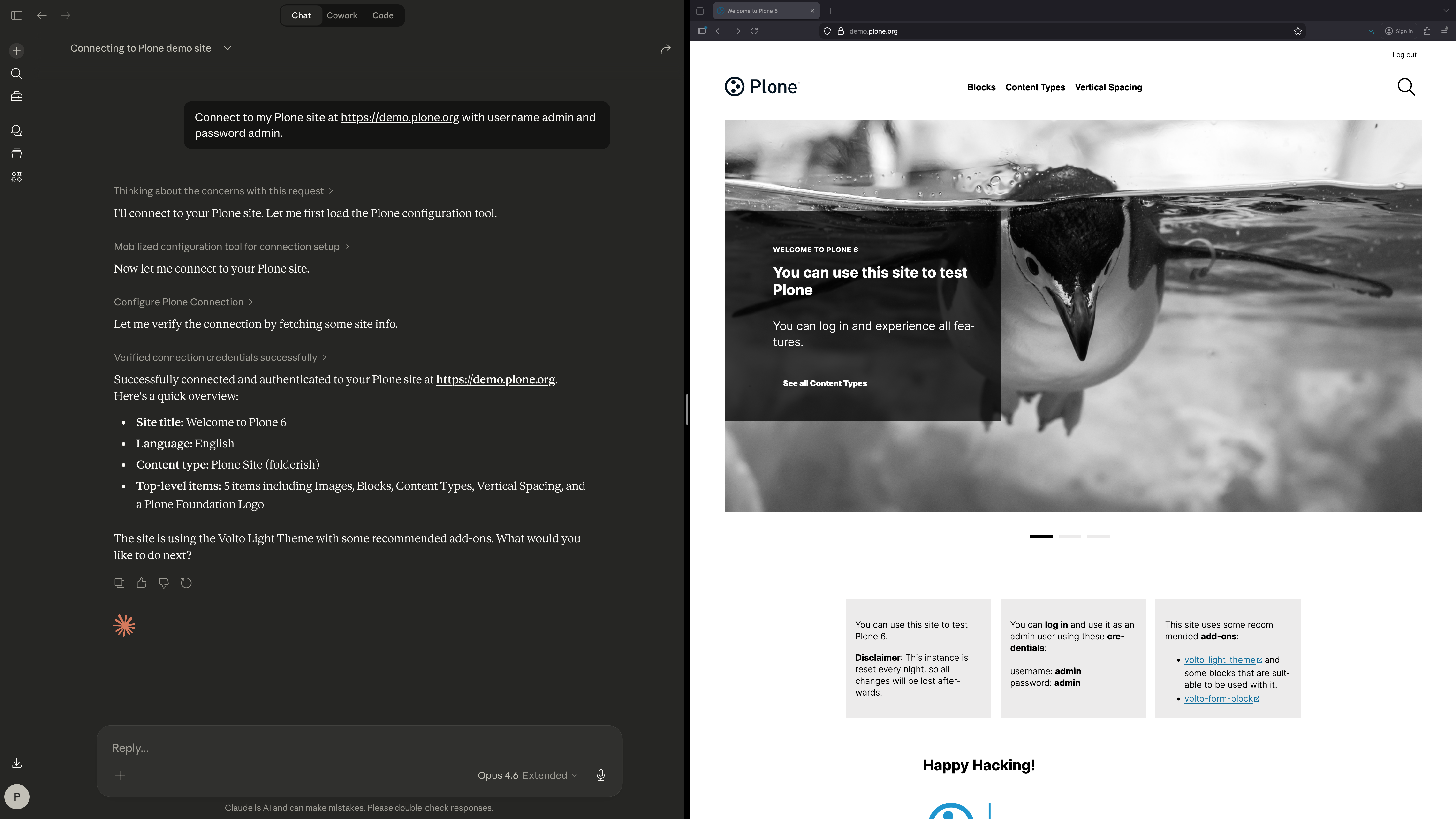
Before doing anything, the AI connects to your Plone site and learns what it can work with.
Connect to Your Site — plone_configure
This is always the first step. It authenticates the AI with your Plone instance.
Example prompt:
"Connect to my Plone site at https://demo.plone.org with username admin and password admin."
Behind the scenes, the AI calls the plone_configure tool with your credentials or picks them up from environment variables (this is recommended in most cases). Once connected, all other tools become available.
Get Site Information — plone_get_site_info
Retrieves the top-level structure and metadata of your site: what sections exist, site title, description, language, navigation items, social links, footer configuration, and more.
Example prompt:
"Give me an overview of what's on my Plone site."
Live test result: The connected site was a Plone instance using the Volto Light Theme, with sections for Blocks, Content Types, Typography, and Vertical Spacing. It had social links configured for Facebook, X, BlueSky, Mastodon, and Discord, plus footer links for imprint, accessibility, and privacy policy.
List Available Content Types — plone_get_types
Shows every type of content you can create on the site.
Example prompt:
"What kinds of content can I create on this site?"
Live test result: The site supports 8 content types: Collection, Event, File, Folder, Image, Link, News Item, and Page (Document). Of these, Event, File, Image, Link, News Item, and Page are directly addable.
Explore a Content Type's Fields — plone_get_type_schema
Returns the complete field schema for any content type. Every field name, its data type, whether it's required, and what values are allowed.
Example prompt:
"What fields does an Event have in my site?"
Live test result: An Event has 25+ fields including title, description, start/end dates, whole_day flag, location, attendees, contact name/email/phone, event URL, recurrence rules, preview image, tags, language, related items, and workflow settings. The required fields are title, start, and end.
Look Up Vocabularies — plone_get_vocabularies
Fetches the vocabularies in your site, for example the list of existing tags (keywords).
Example prompt:
"What keywords are available on the site?"
Live test result: The site had one existing keyword: "main folder". This tool is important when you need to know what values are valid before creating or updating content.
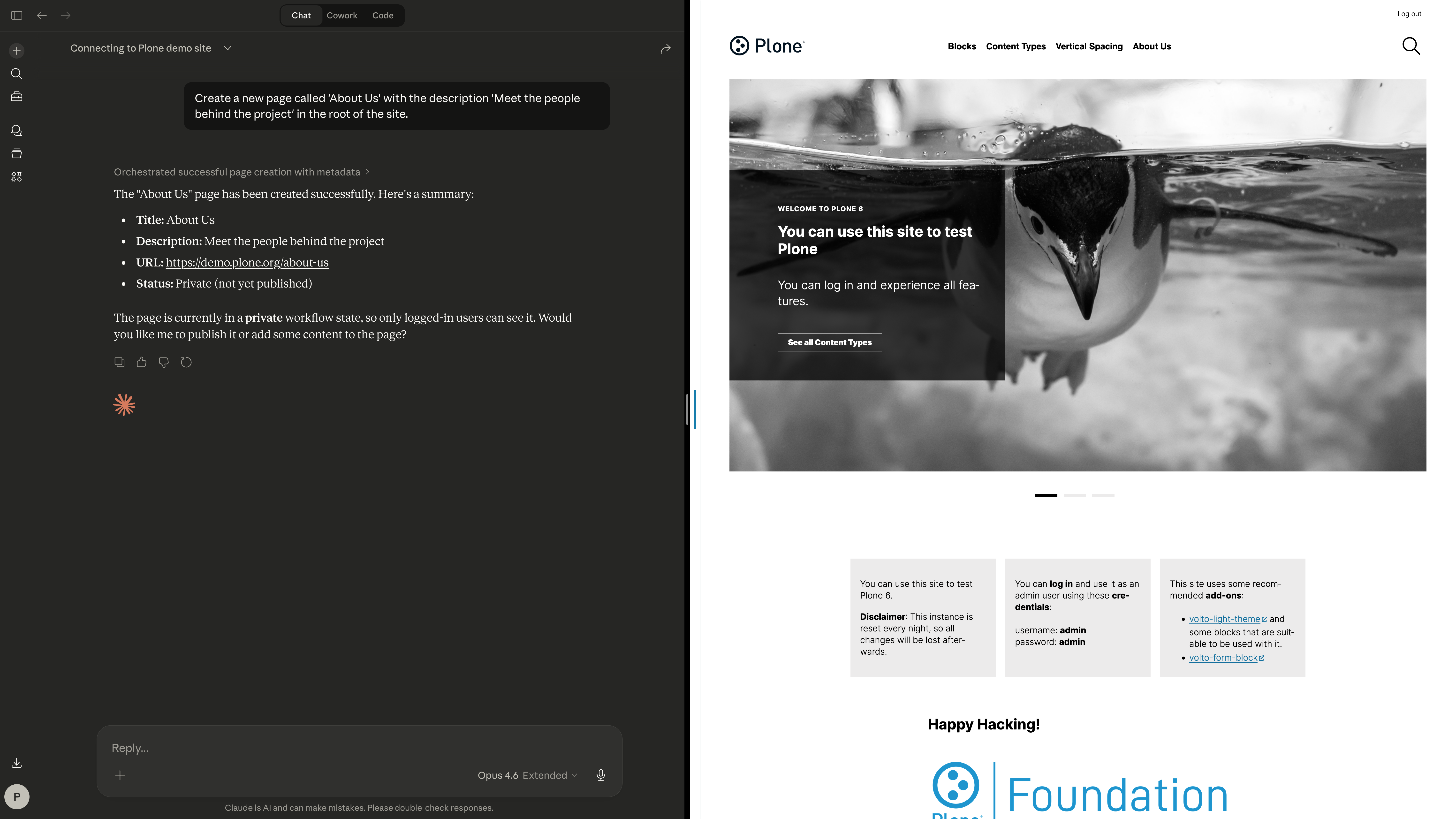
The bread and butter of the MCP server: creating, reading, updating, and deleting content.
Create Content — plone_create_content
Creates a new page, news item, event, or any other content type.
Example prompt:
"Create a new page called 'About Us' with the description 'Meet the people behind the project' in the root of the site."
Live test result: We created a page that was immediately available at `/about-us`. It was automatically assigned the "private" workflow state, got a unique ID, and came with a default title block.
More example prompts:
- "Create a News Item titled 'Product Launch Announcement' under /news."
- "Add an Event called 'Annual Conference 2026' starting March 20th at 9 AM and ending at 5 PM, located in Berlin."
- "Create a page called 'FAQ' with the description 'Frequently asked questions about our services.'"
Read Content — plone_get_content
Retrieves the full data of any content item, including its blocks, metadata, workflow state, and more. You can also expand related components like breadcrumbs, actions, or workflow history.
Example prompt:
"Show me everything about the page at /about-us, including its workflow history."
Live test result: We retrieved our test page with `expand: ["workflow"]` and got back its block structure, all metadata, the complete workflow history showing it was created as private and then published, and the available transitions (Send back, Retract).
Search for Content — plone_search
A powerful search tool with filters for text queries, content types, workflow states, paths, sorting, and pagination.
Example prompts:
- "Find all published pages that mention 'block'."
- "Show me the 5 most recently modified documents on the site."
- "Find all News Items that are still in draft (private) state."
Update Content — plone_update_content
Modifies an existing content item's title, description, blocks, or any other field.
Example prompt:
"Change the title of /about-us to 'About Our Amazing Team' and update the description to 'The talented people who make it all happen.'"
Live test result: We updated our test page's title and description in a single call. The modification timestamp was automatically updated.
Delete Content — plone_delete_content
Permanently removes a content item.
Example prompt:
"Delete the page at /old-draft-page."
Live test result: The test page was successfully deleted.
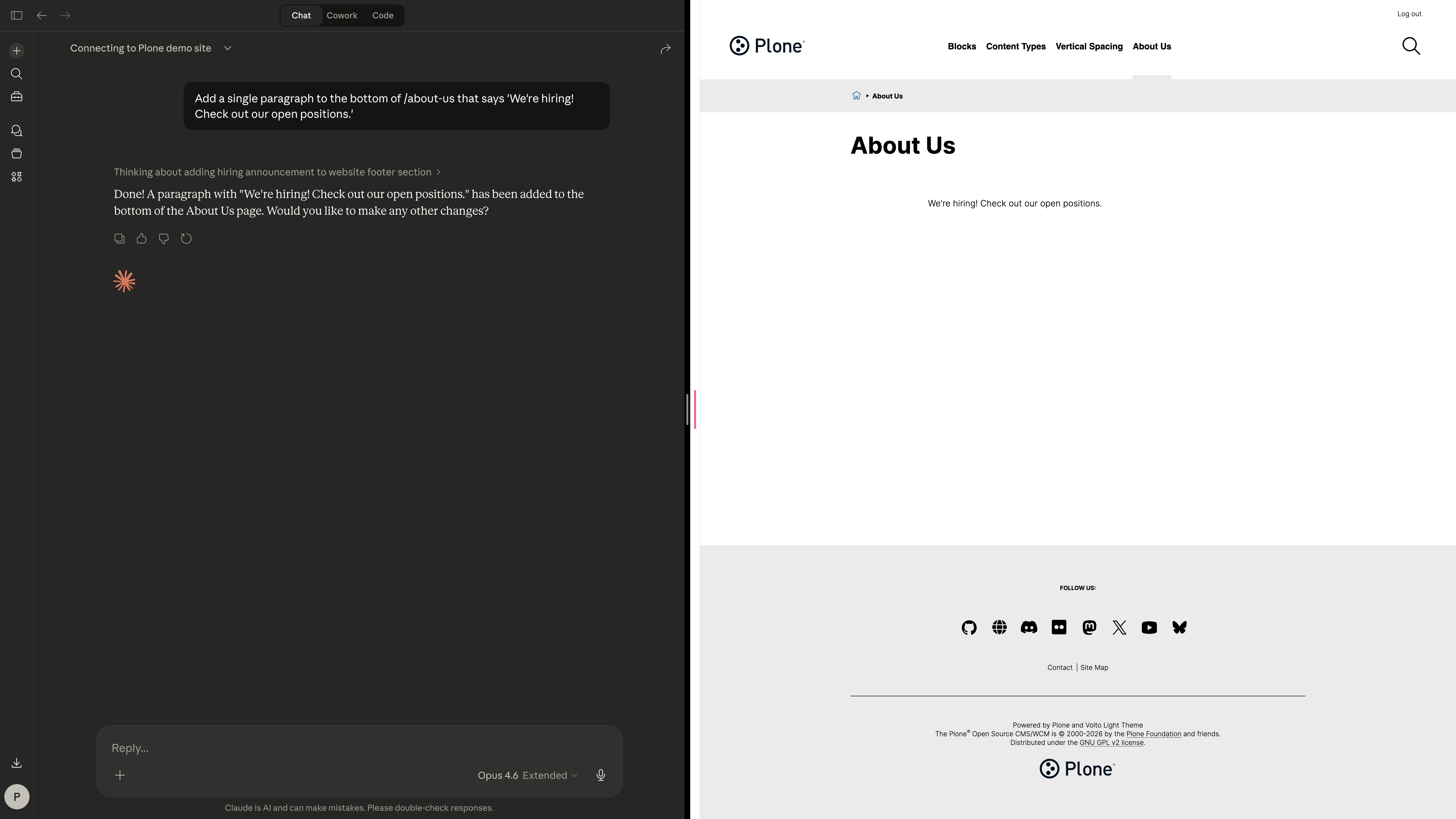
Plone (with Volto) uses a block-based editor. The MCP server gives the AI full control over page layouts through block types.
Discover Block Types — plone_get_block_schemas
Returns the schemas and examples for all available block types, or for a specific one. This is the AI's "instruction manual" for building pages.
Live test result: We had available seven block types (text, teaser, image, button, separator, grid, and listing).
Add a Block to an Existing Page — plone_add_single_block
Appends a new block to a page without disturbing existing content.
Example prompt:
"Add a single paragraph to the bottom of /about-us that says 'We're hiring! Check out our open positions.'"
Live test result: We added a slate block with a paragraph to our test page. It appeared at the end of the block layout, after the title block.
Other example prompts:
- "Add an image block to the homepage using the image at /media/hero-banner."
- "Add a 'Learn More' button at the bottom of /services that links to /contact."
- "Insert a horizontal separator on /pricing between the plans and the FAQ."
Build Complete Layouts — plone_create_blocks_layout
Prepares a complete multi-block structure in memory, then applies it when creating or updating content. This is how you build rich pages with multiple blocks in one go.
Example prompt:
"Create a new landing page at /summer-events with a heading that says 'Summer Events 2026', a paragraph describing the summer plans, a separator, and a grid with three teasers linking to our key reunions."
Update a Specific Block — plone_update_single_block
Modifies one block on a page without touching the others. You need the block's ID (which you get from plone_get_content).
Example prompt:
"Update the text in the first paragraph on /about-us to include our mission statement."
Remove a Block — plone_remove_single_block
Deletes a specific block from a page by its ID.
Example prompt:
"Remove the slider block from the homepage"
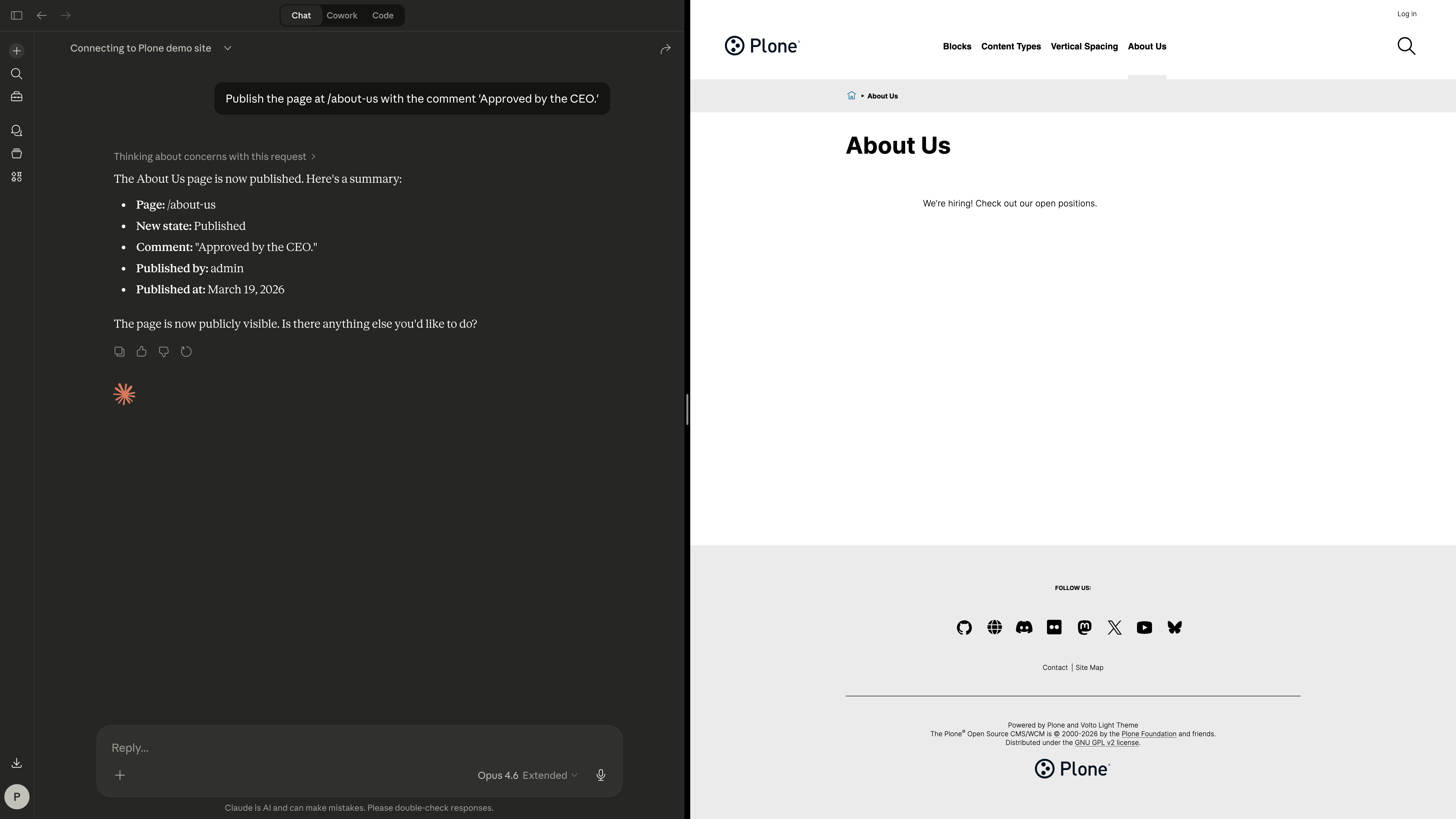
Plone's workflow system controls content visibility. The MCP server lets the AI manage the full publication lifecycle.
Check Workflow State — plone_get_workflow_info
Shows where a content item stands in the publication process and what transitions are available.
Example prompt:
"What's the publication status of /about-us?"
Live test result: Our test page was initially in "Private" state with two available transitions: "Publish" and "Submit for publication."
Change Workflow State — plone_transition_workflow
Executes a workflow transition, optionally with a comment explaining why.
Example prompt:
"Publish the page at /about-us with the comment 'Approved by the CEO.'"
Live test result: We published our test page, and the workflow history was updated with the transition, actor (admin), timestamp, and our comment. After publishing, the available transitions changed to "Send back" and "Retract."
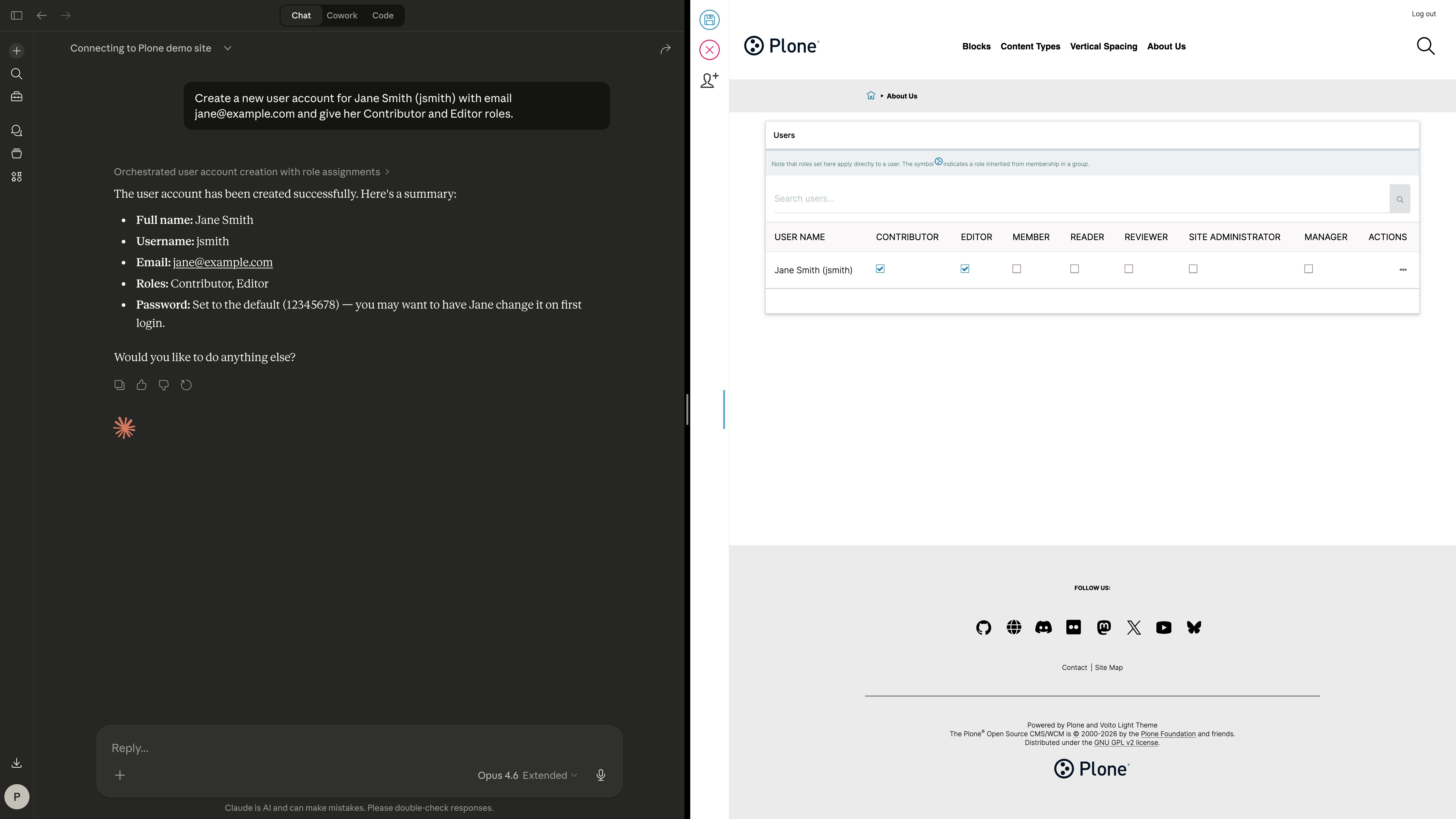
The MCP server includes full user management capabilities.
Create a User — plone_create_user
Sets up a new user account with a username, password, email, full name, and roles.
Example prompt:
"Create a new user account for Jane Smith (jsmith) with email [email protected] and give her Contributor and Editor roles."
Live test result: We created the user `jsmith` with the Contributor and Editor roles.
Update a User — plone_update_user
Modifies an existing user's profile, including adding or removing roles.
Example prompt:
"Give the user jsmith the Manager role and update her location to 'Barcelona, Spain.'"
Live test result: We added the Manager role and set the location for our test user in a single call. Roles are specified as a map: `{Editor: true}` to add, `{Contributor: false}` to remove.
Real-World Scenarios
Here are some practical, multi-step tasks you could accomplish just by talking to the AI:
Scenario 1: "Set up a blog section"
"Create a new page called 'Blog' at the site root. Add a short intro paragraph, and a listing block that shows the 10 most recent News Items in a summary layout, sorted by publication date. Then publish it."
Scenario 2: "Onboard a new team member"
"Create a user account for Alex Rivera (arivera), email [email protected], with Contributor and Editor roles. Then create a private page at /team/alex-rivera with their bio."
Scenario 3: "Content audit"
"Find all pages that are still in private/draft state. List them by modification date so I can see which ones have been sitting unpublished the longest."
Scenario 4: "Update the homepage"
"Show me the current blocks on the homepage. Then replace the first teaser's title with 'Winter Events 2026' and add a new button at the bottom linking to /winter-events with the text 'Register Now'."
Scenario 5: "Create an event page"
"Create an Event called 'Community Meetup' on April 15, 2026 from 6 PM to 9 PM at 'City Hall, Main Street'. Add a text block with the agenda and a button with the text 'Register'. Then publish it."
*All examples in this guide were tested against a live Plone instance on March 13, 2026, using Claude Opus 4.6.
*This blog post has been generated, tagged, and published with Claude Desktop.